Using the Budget Optimizer
What you'll need
- At least one completed model run
- Familiarity with your current budget allocations
Open the Optimizer
After a model run completes, go to the Optimizer page from the main navigation.
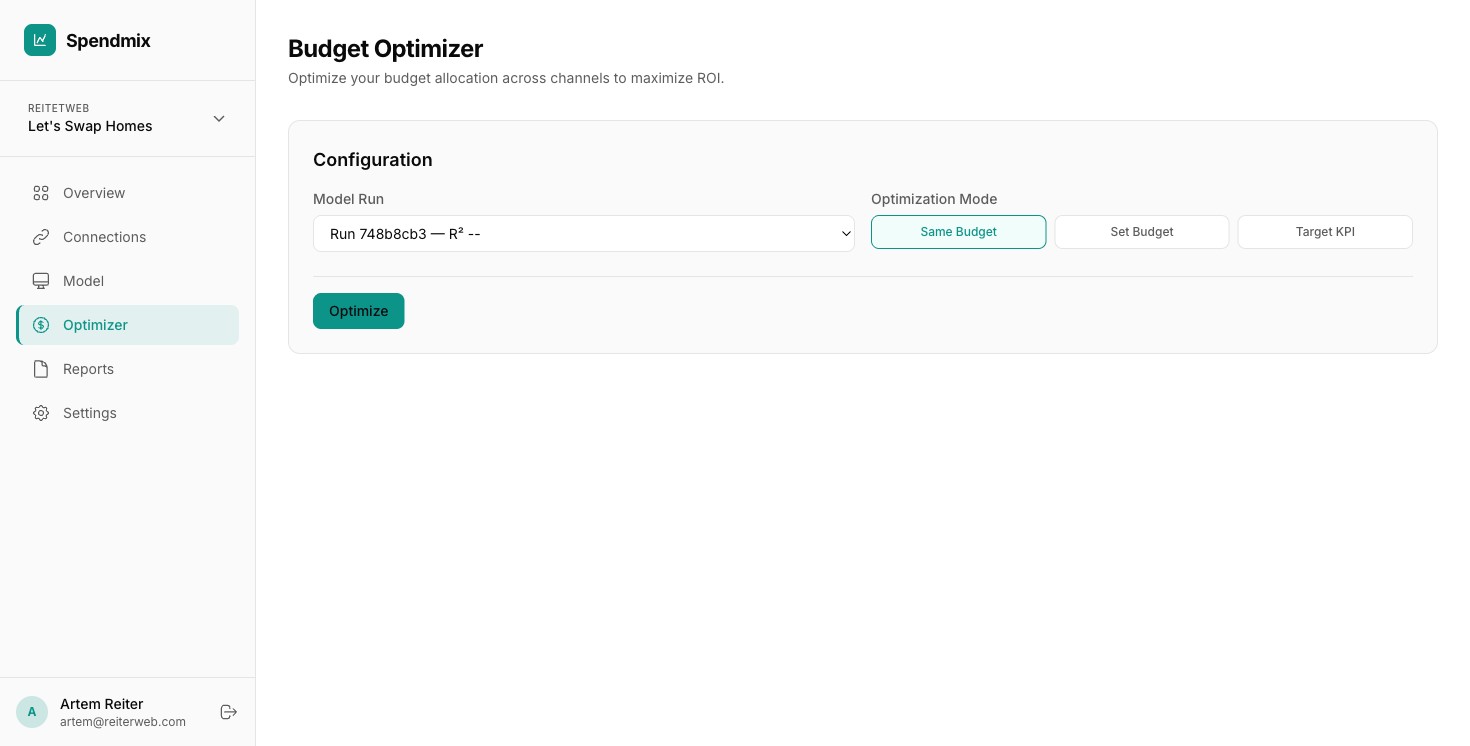
Select a completed run
Use the dropdown to pick the model run you want to optimize against. Only runs with a Completed status appear here.
Choose the optimization mode
Same Budget redistributes your current total spend across channels for maximum return. Increase Budget lets you set a new total and find the best allocation at that level.
Set channel constraints (optional)
For each channel, you can set minimum and maximum spend limits. Use this if you have contractual minimums or practical caps.
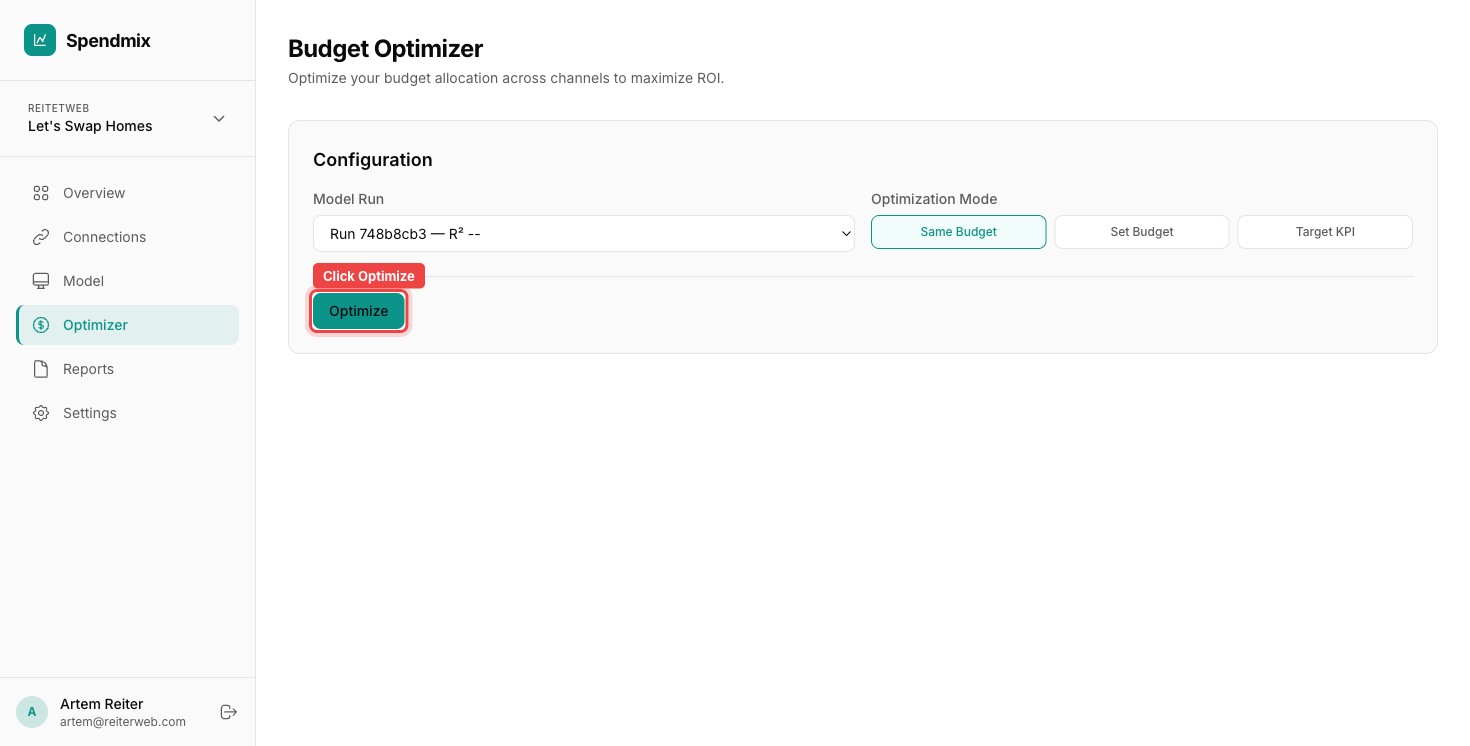
Run the optimization
Click Optimize. The system uses response curves from your model to find the allocation that maximizes projected revenue.
Review projected changes
The results show projected revenue, ROAS, and CPA for the optimized allocation compared to your current spend. Green arrows indicate improvement.
Save the scenario
Give the scenario a name (e.g., "Q2 Rebalance") and click Save. You can create multiple scenarios with different constraints.
Compare scenarios
Open the comparison view to see up to 4 saved scenarios side-by-side. This helps you pick the best plan before committing to budget changes.
Next step