Sharing and Exporting Reports
What you'll need
- At least one completed model run
- Your brand logo and color (optional, for white-labeling)
Go to Reports
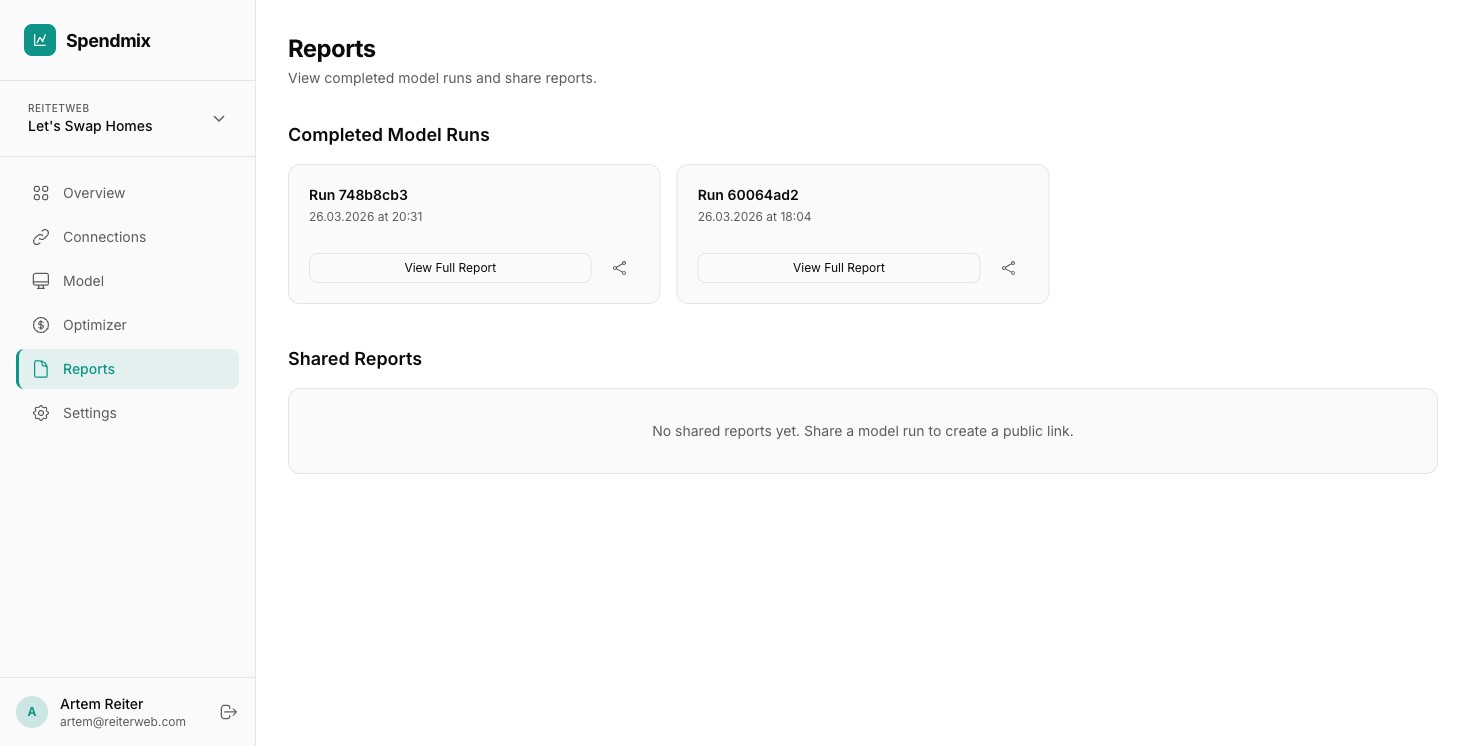
Open the Reports page. You will see a list of all completed model runs.
Open the share dialog
Click the share icon on the run you want to share.
Set link expiry
Choose how long the link stays active: 1 day, 7 days, 30 days, 90 days, or never. Shorter expiry is safer for sensitive data.
Add a password (optional)
Enable password protection and set a password. Recipients will need to enter it before viewing the report.
Configure white-label options
Upload your logo, set your brand color, and enter your company name. The shared report will show your branding instead of Spendmix.
Create and copy the link
Click Create Share Link. The link is copied to your clipboard. Send it to your stakeholders via email, Slack, or any channel.
Export as PDF
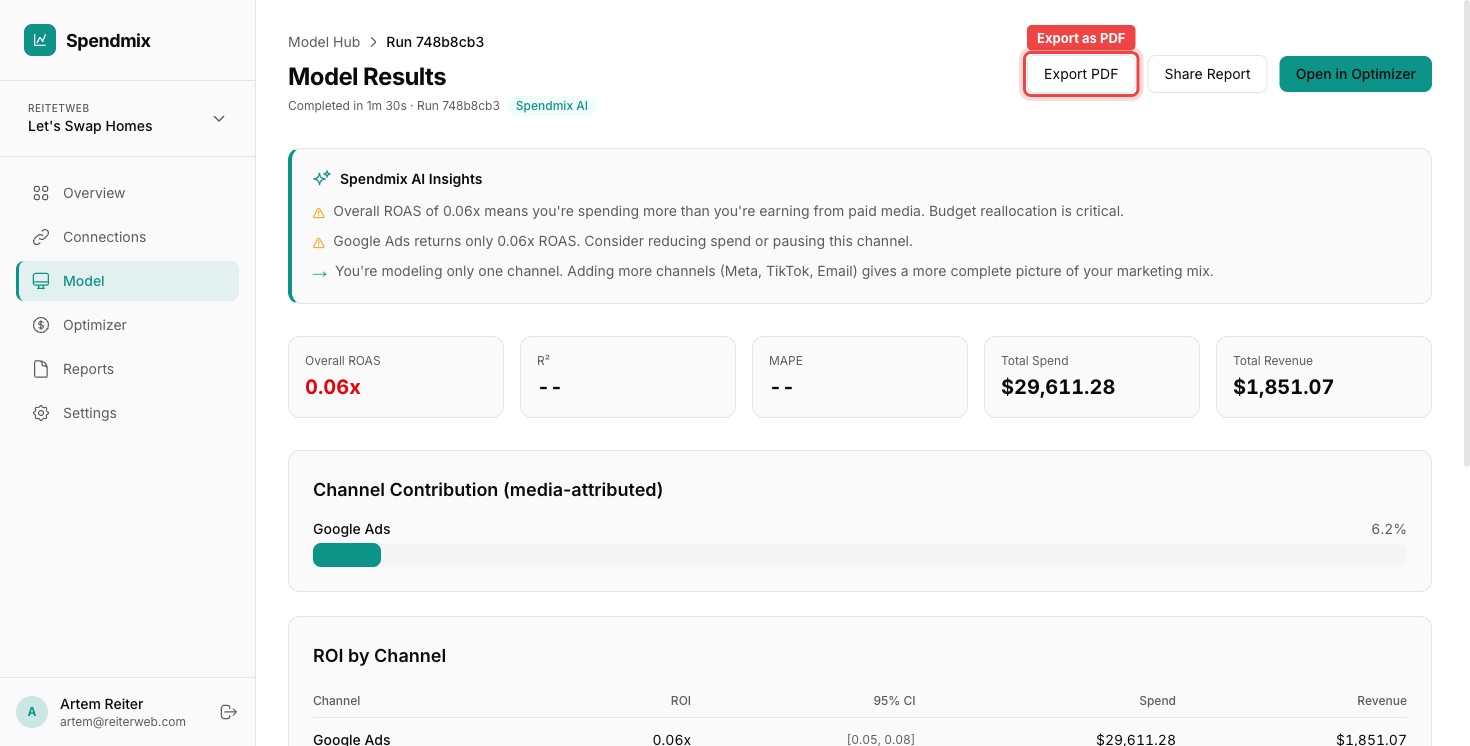
To get a static file, click Export PDF on any results page. A print-optimized view opens. Use your browser print dialog to save as PDF.
Next step