How to Connect Google Ads
What you'll need
- A Spendmix account with an active workspace
- A Google account with access to your Google Ads account
- At least Viewer-level access in Google Ads
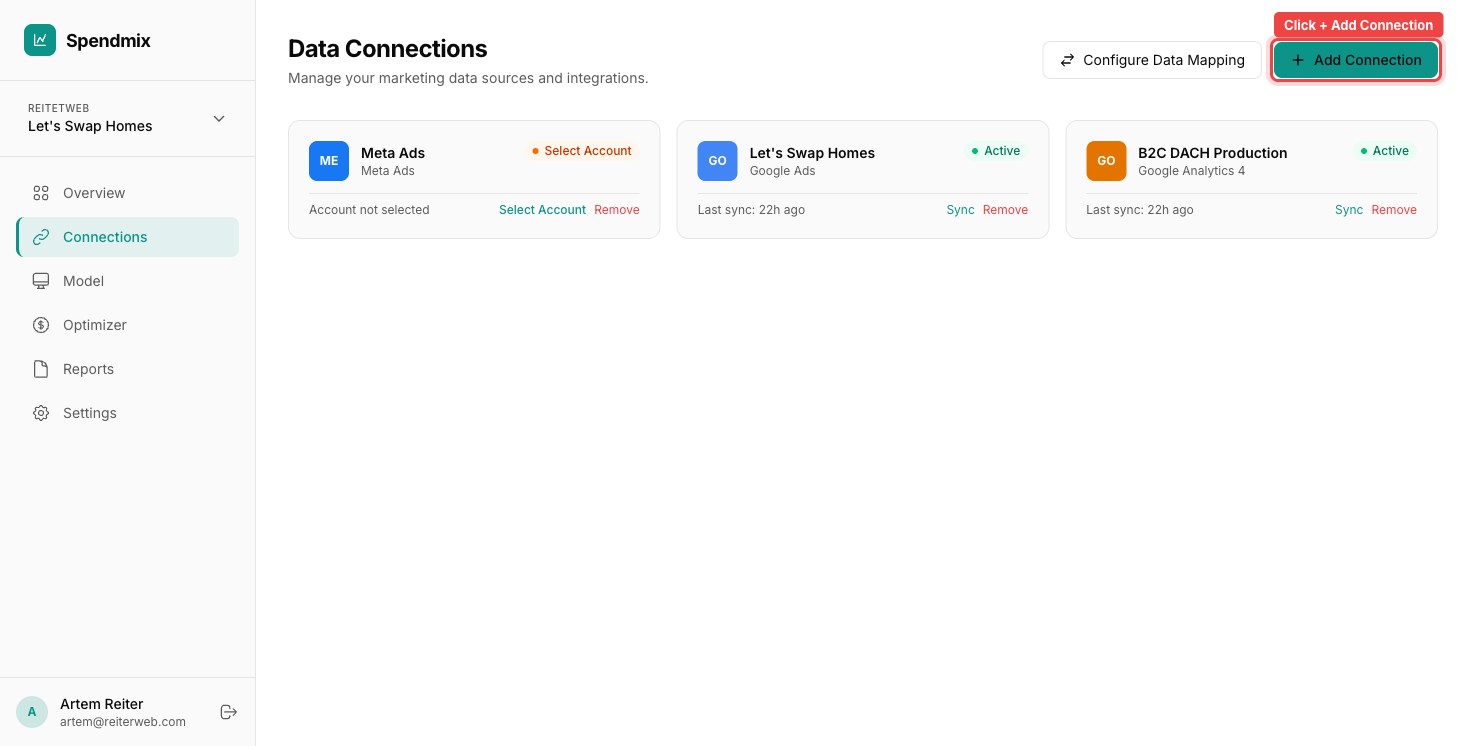
Open the Connections page
From your Dashboard, go to Connections and click Add Connection.
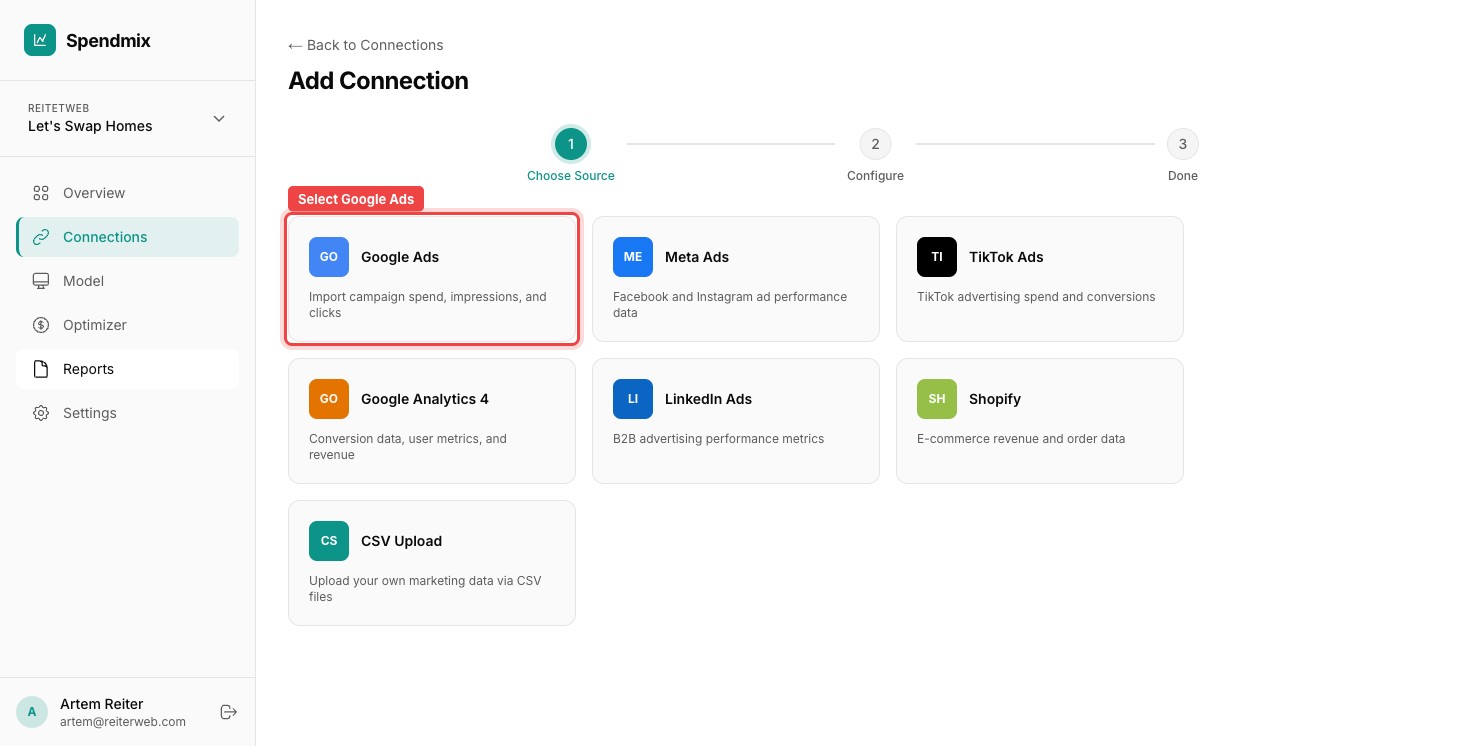
Select Google Ads
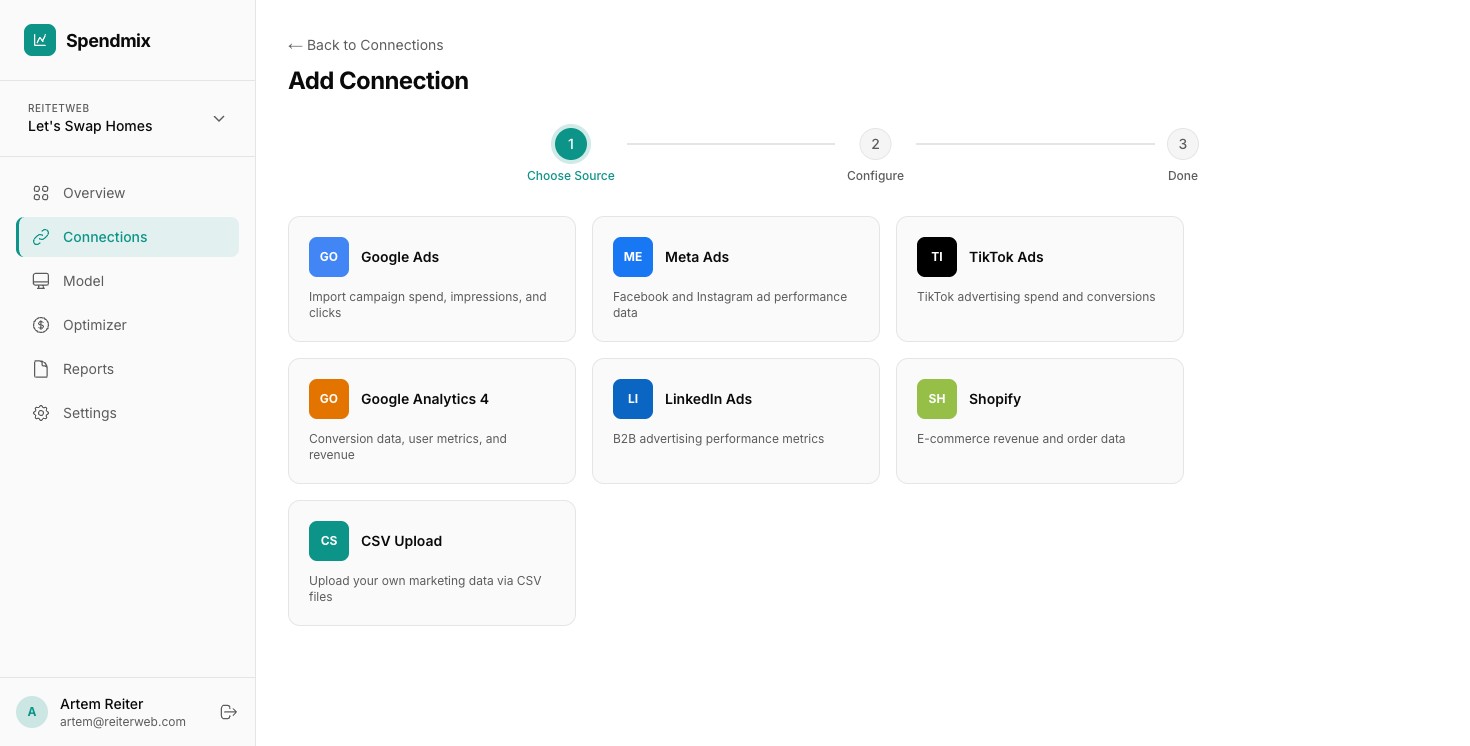
Find Google Ads in the connector list and click it.
Start the OAuth flow
Click Connect with Google. A new window opens where you sign in to your Google account.
Choose your Google account
Select the Google account that has access to your Google Ads data. If you manage multiple accounts, pick the one tied to the ad account you want to analyze.
Grant read-only access
Spendmix requests read-only permissions. It will never modify your campaigns, budgets, or settings. Click Allow.
Select the Google Ads account
If your Google account manages multiple Google Ads accounts (MCC), pick the specific account you want to connect. You can add more later.
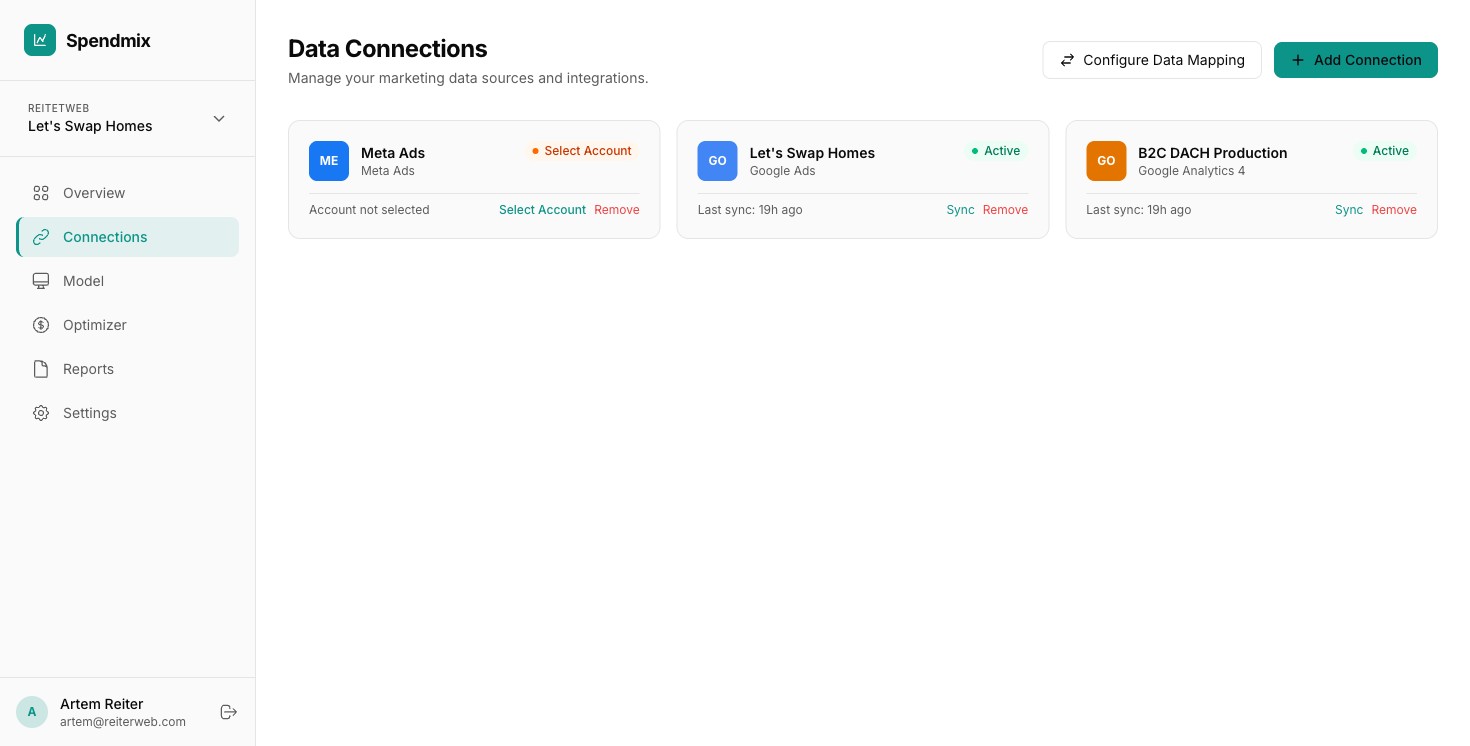
Verify the sync
You are redirected back to Spendmix. Your new Google Ads connection appears on the Connections page with a Syncing status. Initial sync usually takes 2–5 minutes.
Next step