Back to guides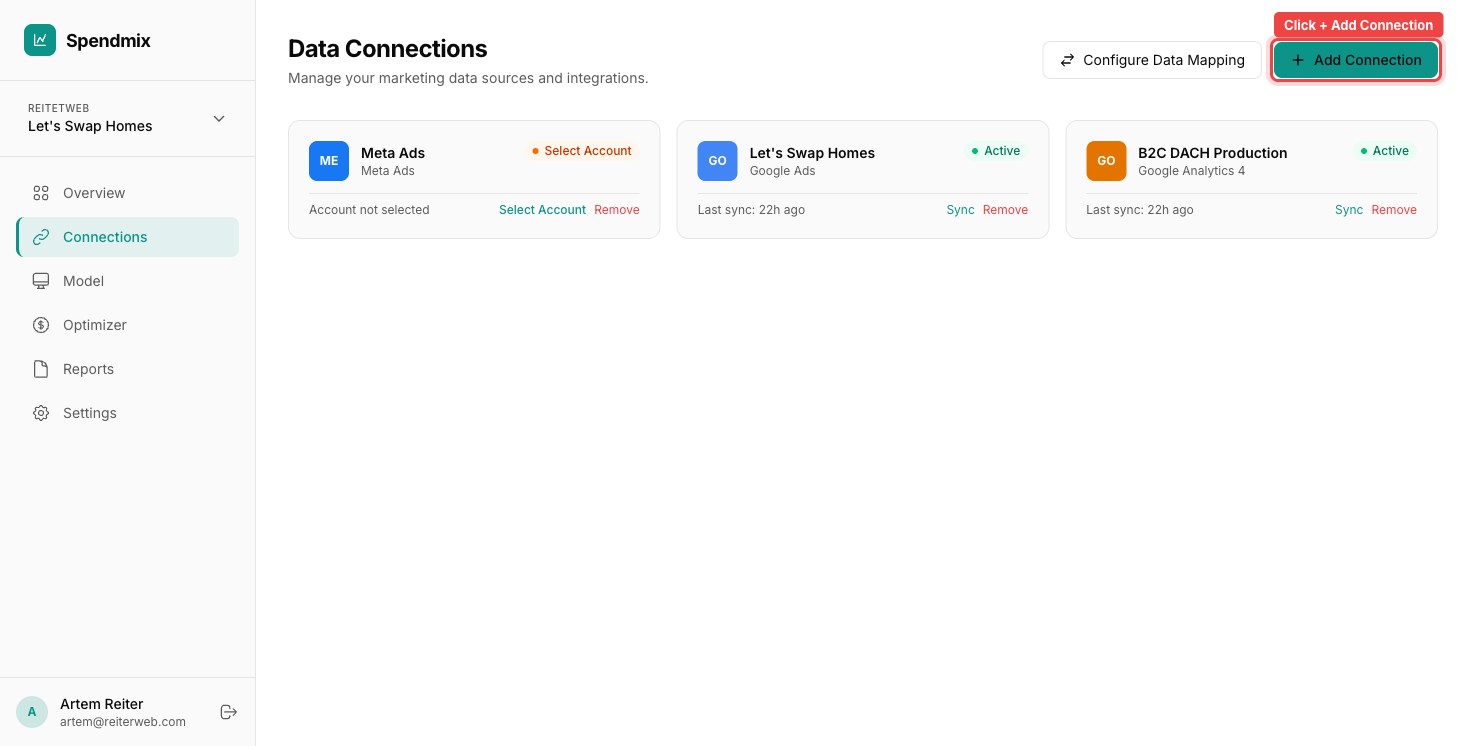
Connections3 min
How to Connect Meta Ads
What you'll need
- A Spendmix account with an active workspace
- A Facebook account with access to your Meta ad accounts
- Admin or Advertiser role on the ad account
1
Open the Connections page
From your Dashboard, go to Connections and click Add Connection.
2
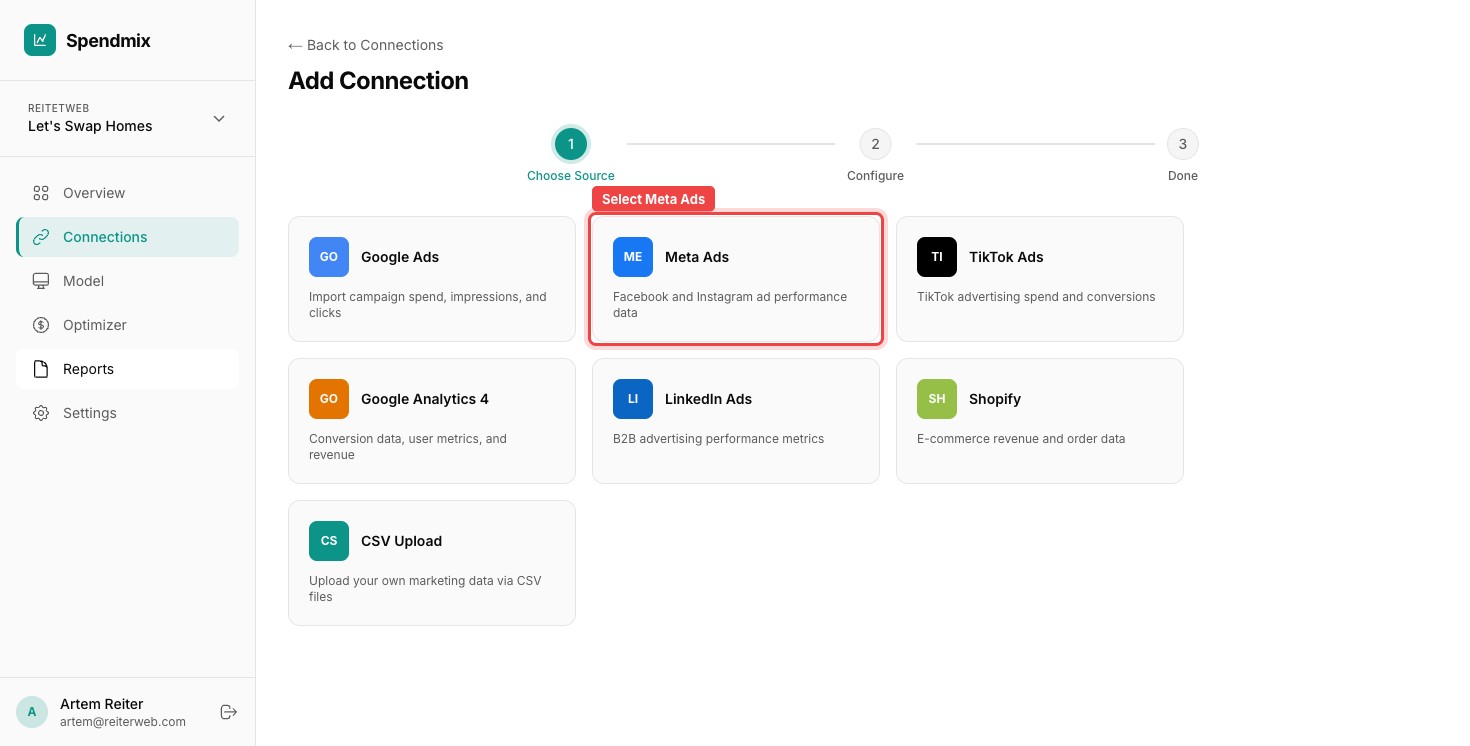
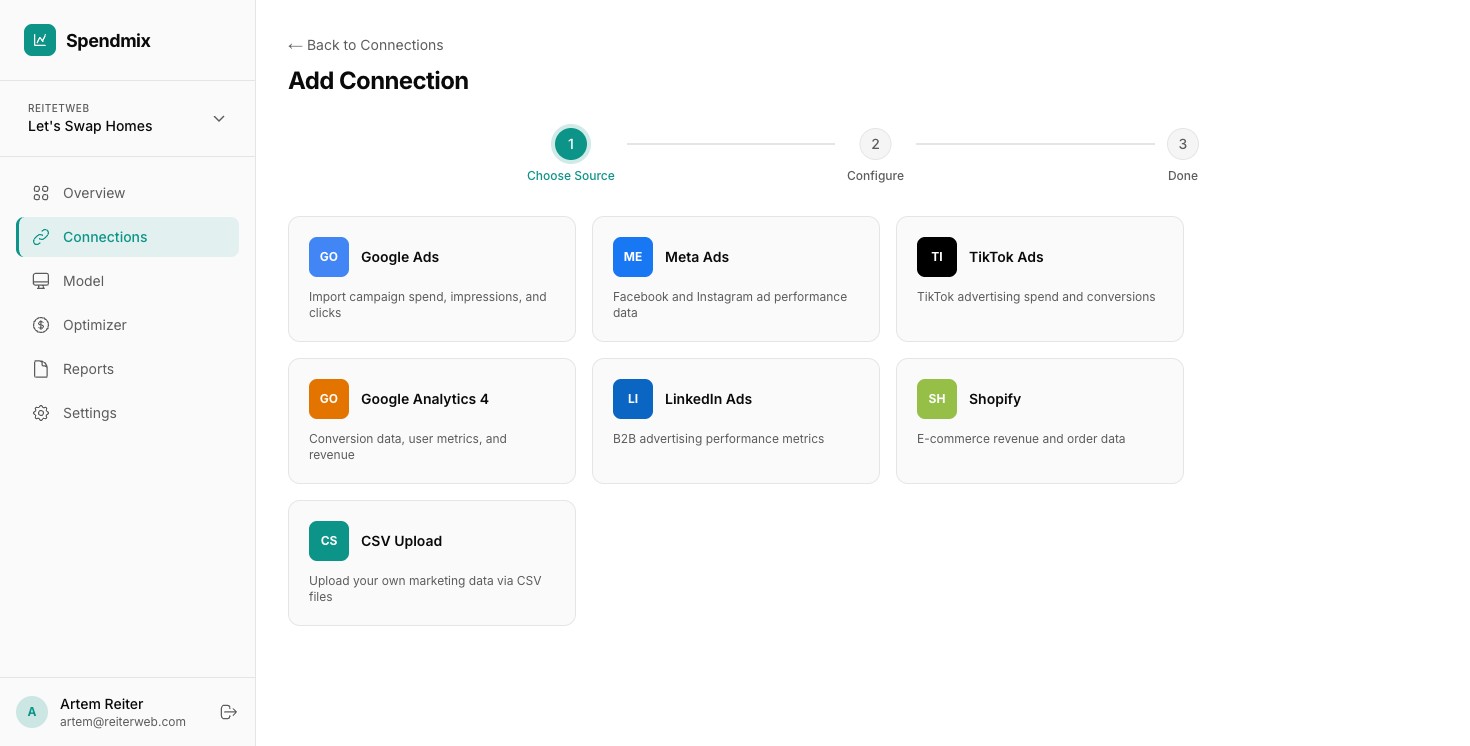
Select Meta Ads
Find Meta Ads in the connector list and click it.
3
Start the Facebook OAuth flow
Click Connect with Facebook. You are redirected to Facebook to log in.
4
Select ad accounts to share
Facebook shows a list of ad accounts you manage. Check the ones you want Spendmix to access. You can change this later in Facebook Business Settings.
5
Grant read-only permissions
Review the permissions Spendmix is requesting. All access is read-only — Spendmix cannot modify your campaigns or ads. Click Allow.
6
Return to Spendmix
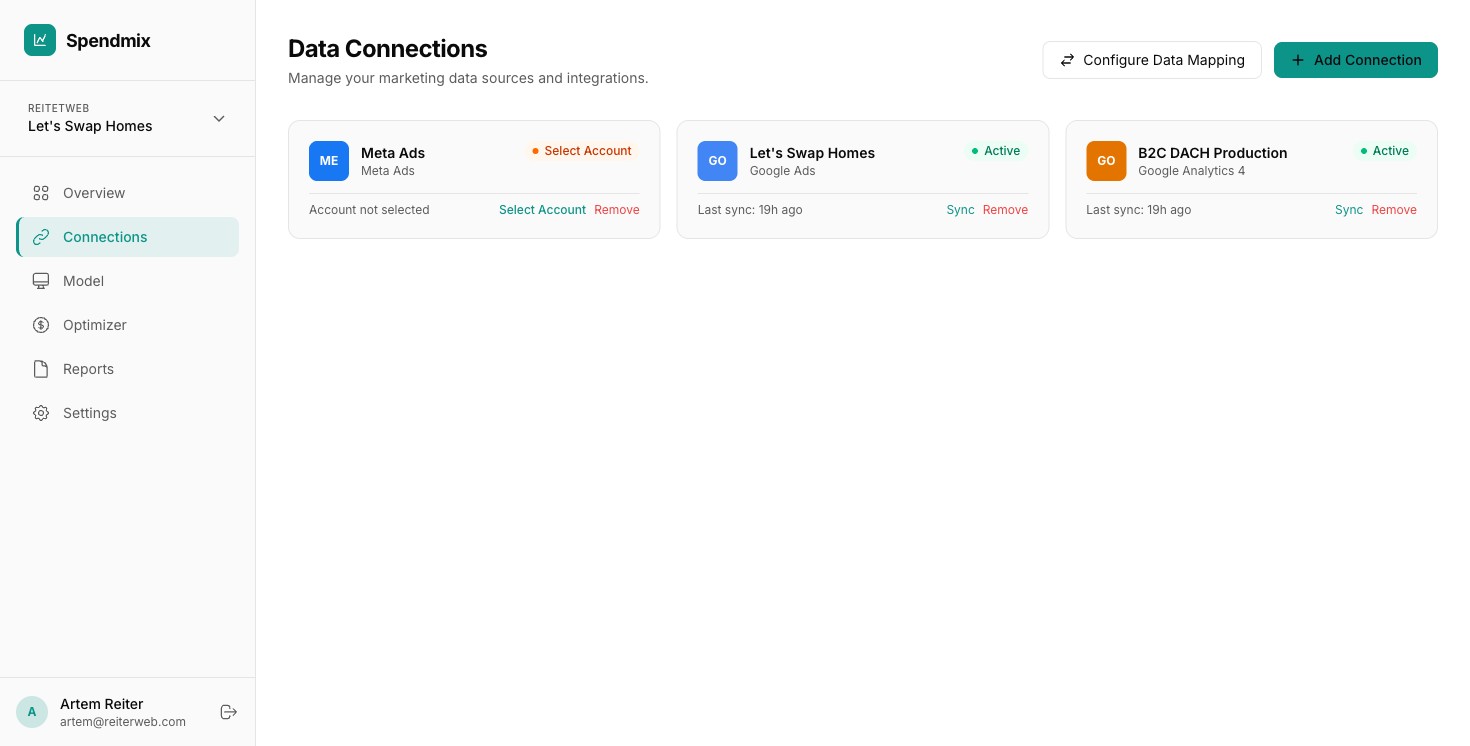
You are redirected back to the Connections page. Your Meta Ads connection now appears with a Syncing status.
7
Wait for the initial sync
Initial sync takes 5–10 minutes depending on data volume. Once complete, the status changes to Connected and your data is ready to use in models.
Next step