Back to guides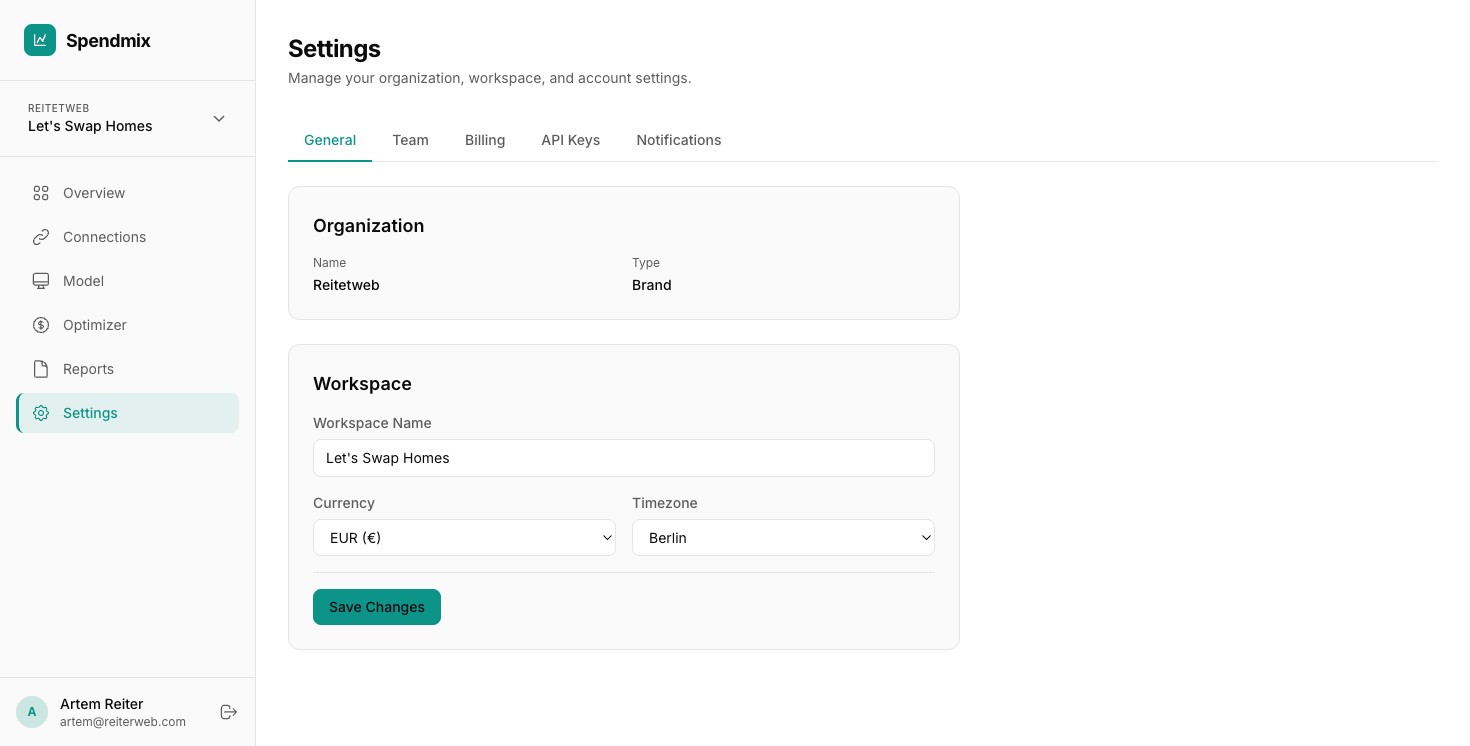
Getting Started2 min
Inviting Your Team
What you'll need
- Admin access to your Spendmix workspace
- Email addresses of team members to invite
1
Open Team settings
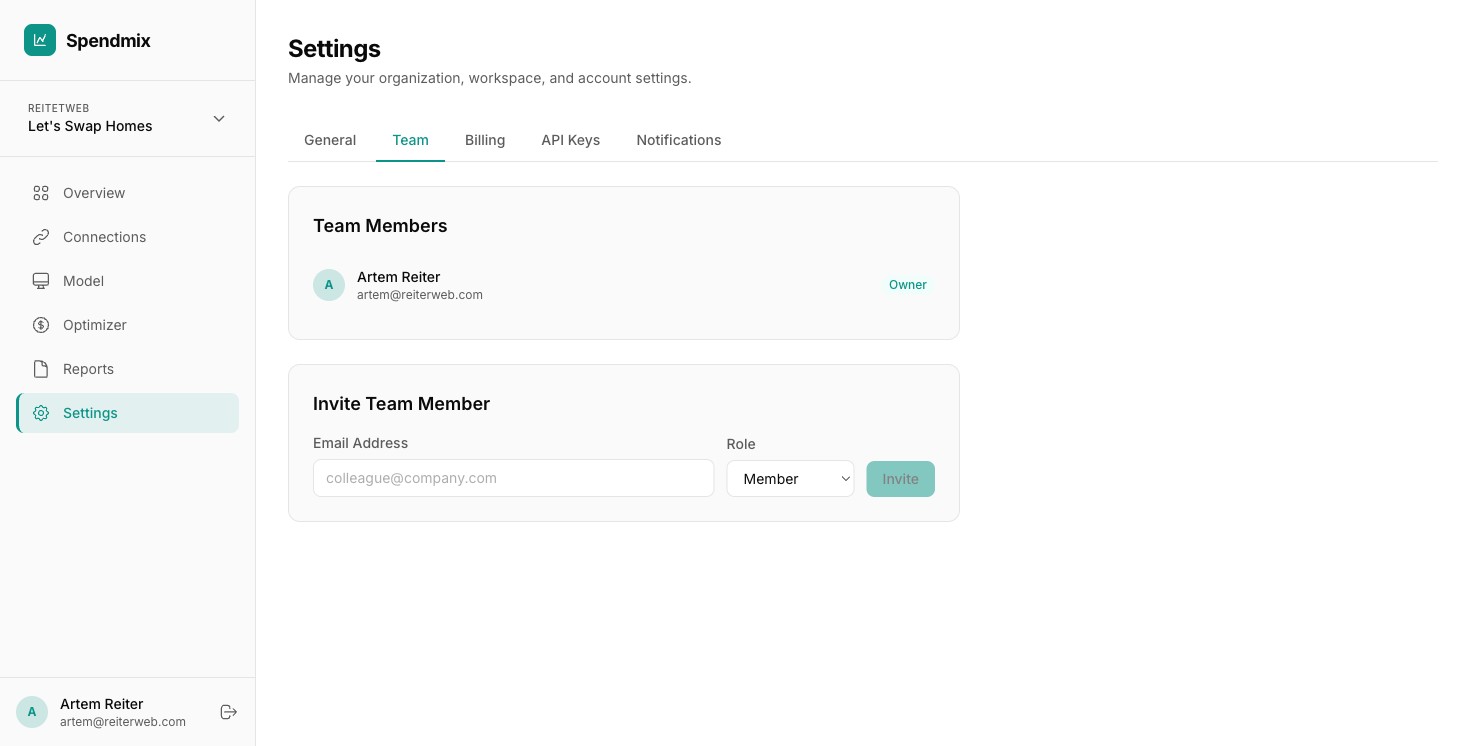
Go to Settings and click the Team tab.
2
Click Invite Member
Click the Invite Member button at the top of the team list.
3
Enter their email
Type the email address of the person you want to invite.
4
Select their role
Choose one of three roles. Viewer: read-only access to reports and dashboards. Analyst: can run models and create optimizations. Admin: full access including billing and team management.
5
Send the invitation
Click Send. They will receive an email with a link to join your workspace.
6
They accept and get access
Once the team member clicks the link and creates an account (or signs in), they can access the workspace with their assigned permissions. You can change their role later from the Team tab.
You're all set
You have completed all the guides. Ready to start optimizing your marketing budget?
Start your free trial