How to Connect Google Analytics 4
What you'll need
- A Spendmix account with an active workspace
- A Google account with access to your GA4 property
- At least Viewer-level access on the GA4 property
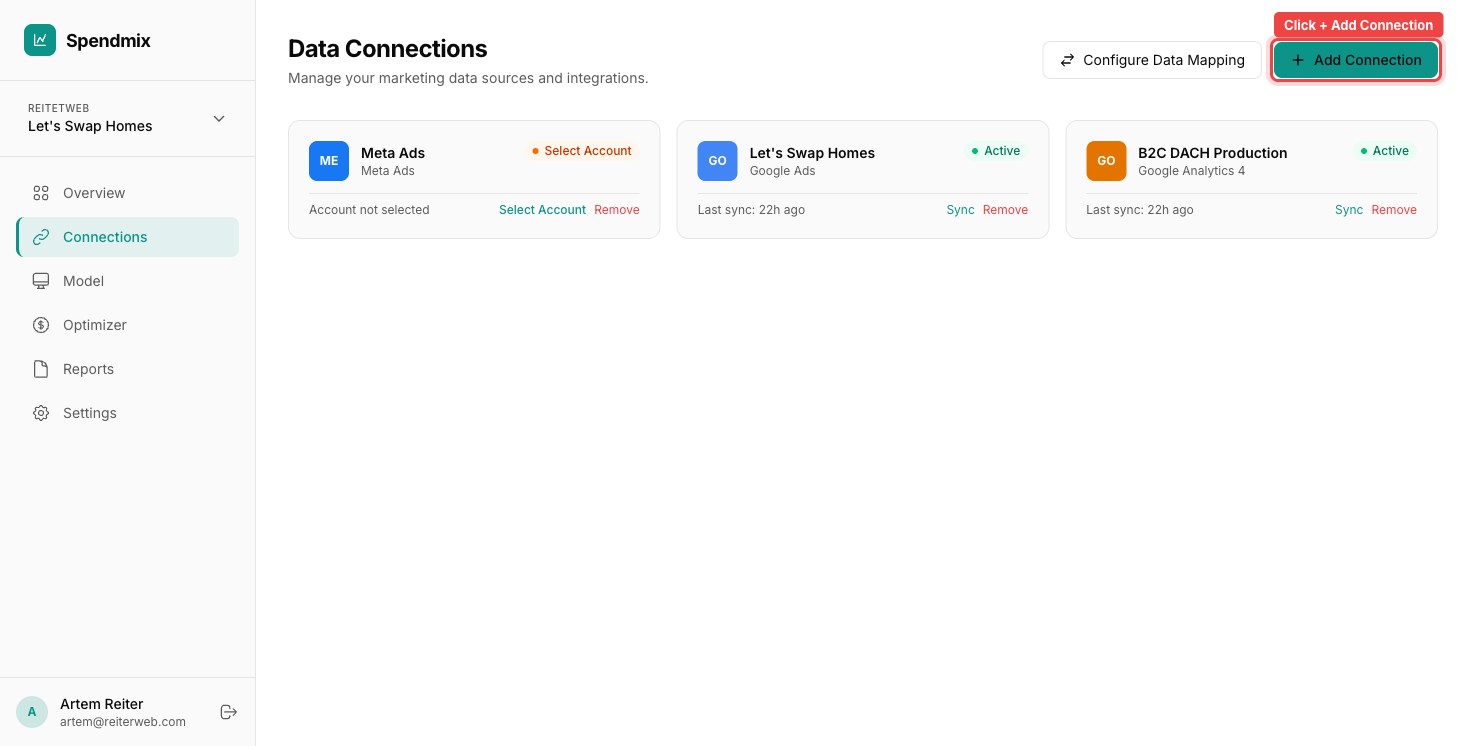
Open the Connections page
From your Dashboard, go to Connections and click Add Connection.
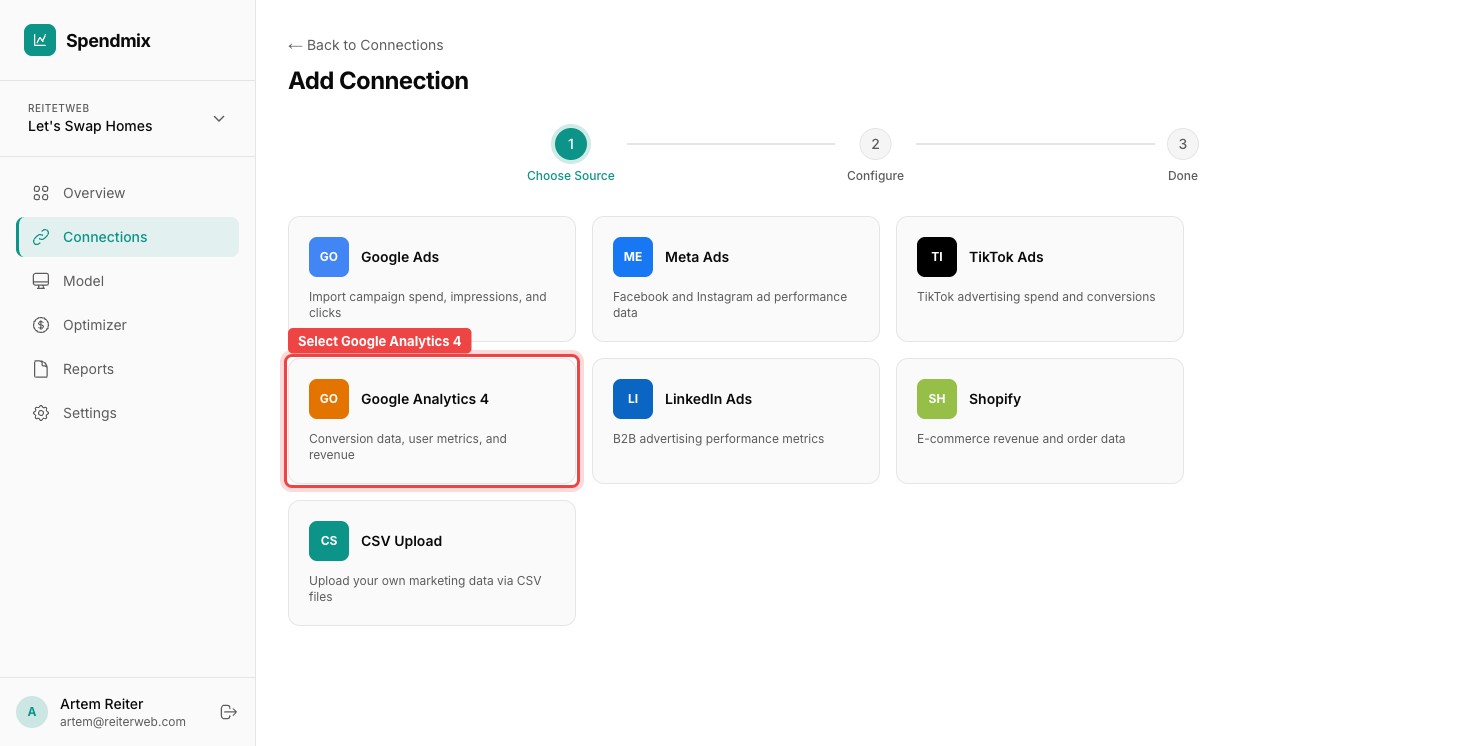
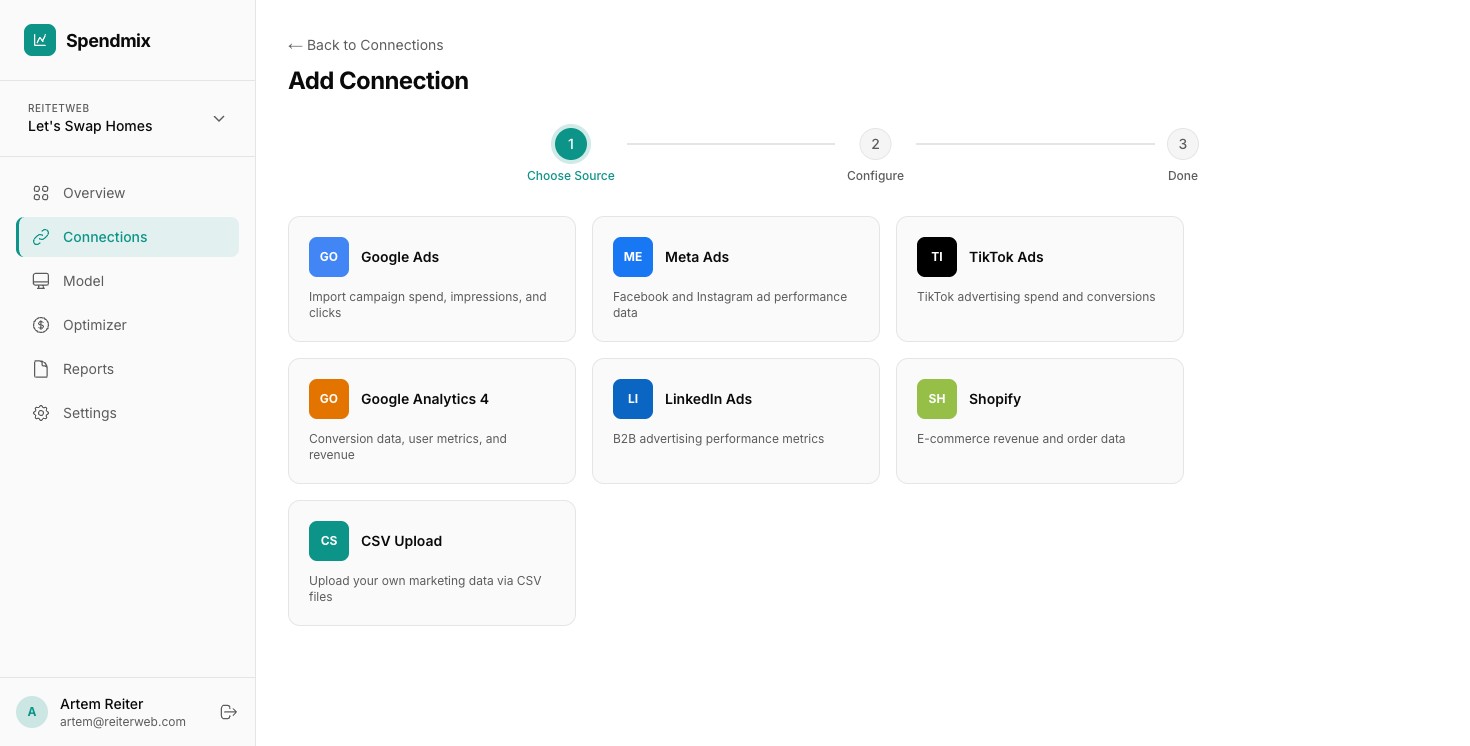
Select Google Analytics 4
Find Google Analytics 4 in the connector list and click it.
Authenticate with Google
Click Connect with Google and sign in with the Google account that has access to your GA4 property.
Select your GA4 property
Spendmix lists all GA4 properties your account can access. Pick the one you want to connect.
Choose events to import
Select which GA4 events to import as conversions. Common choices: purchase, generate_lead, sign_up. You can change this selection later.
Data that gets imported
Spendmix pulls session data, conversion events, and revenue. This data feeds into your models as the dependent variable (the outcome you are trying to explain).
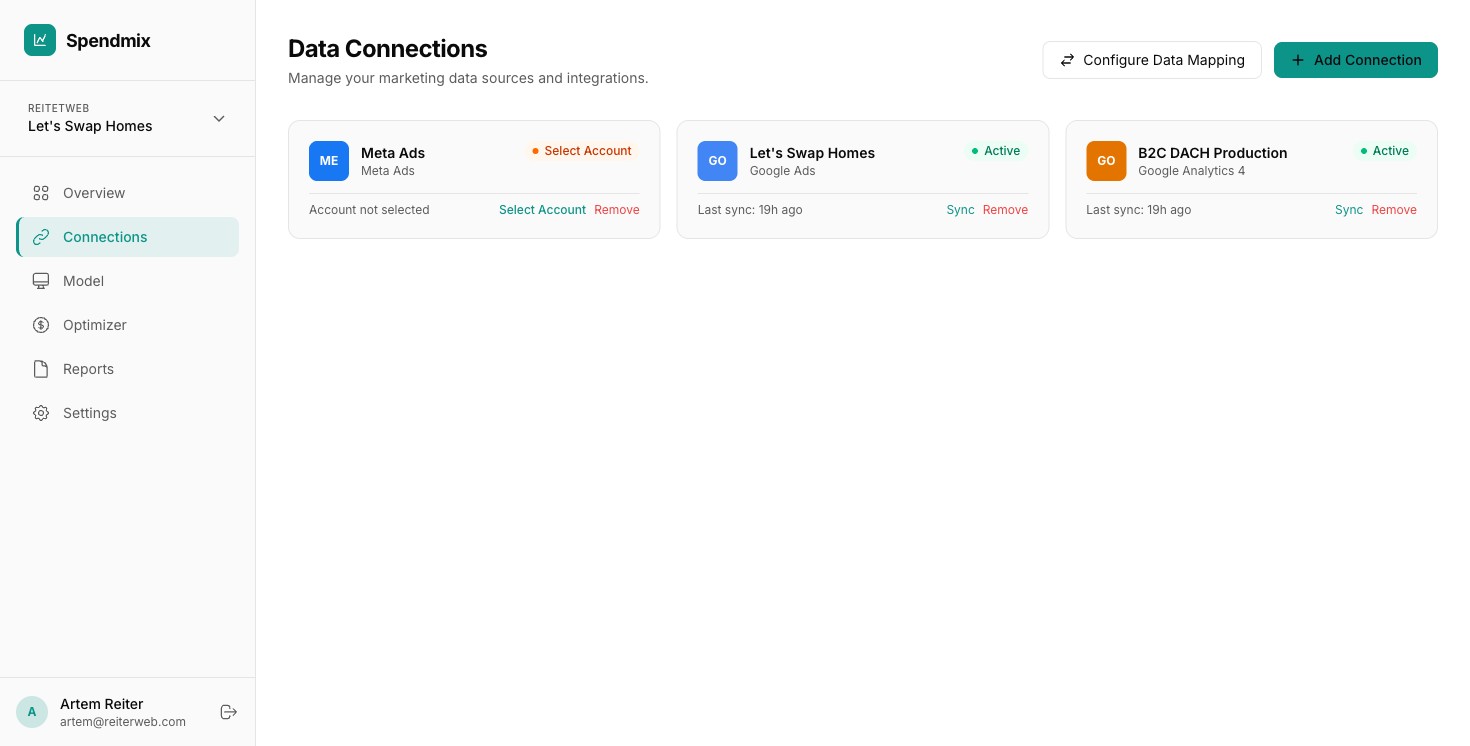
Verify the sync
Check the Connections page. Your GA4 connection should show a Syncing status, then switch to Connected once the initial pull is complete.
Next step